Electronics > Cameras > Security & Surveillance > IP Cameras
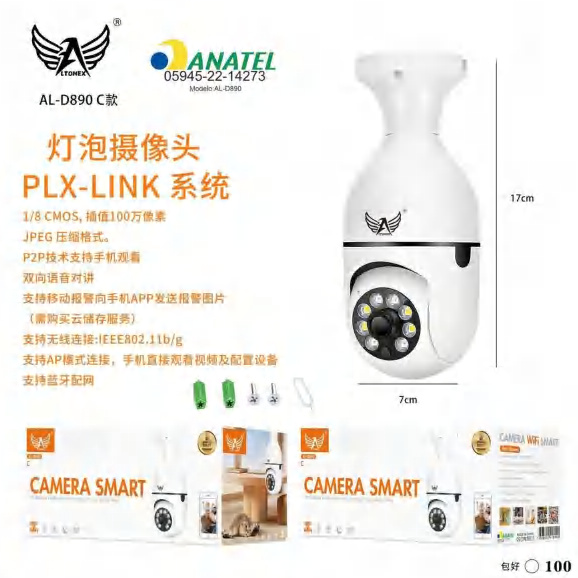
E26/E27 Bulb Security Camera PixLink AL-D890-C
Brand: Generic / OEM
•
Audited BOM: 12 Components
🛠️ Troubleshooting Guide & Return Mitigation
Verified Self-Service BasePractical guide for the PixLink E26 Bulb Security Camera: installation, usage, and common troubleshooting to ensure proper operation and prevent warranty claims.
RMA Prevention Tags:
#incorrect_installation
#outdated_firmware
#improper_environment_use
#unstable_wifi_setup
🔍 Colloquial Consumer Search Queries:
“pixlink e26 camera not connecting”
“bulb camera not turning on”
“pixlink al-d890-c poor image”
“panoramic e26 camera failing”
“installing bulb camera”
🚀 Quick Start & Safe Operation Guide
1
Ensure the E26 socket is powered off before installing the camera. Screw it in firmly.
🔒
+3 Detailed Operational Steps Locked in Torfus Pro
Unlock Steps
⚡ Easy DIY Troubleshooting & Common Fixes
🔧
prob_01
Camera does not power on after installation.
Common root cause: No power or E26 socket is switched off.
Step-by-step solution: Check if the light switch is on and the socket is receiving power. Try another E26 socket to test.
💡
Pro tip: Always turn off power before installing or removing the camera from the socket.
📸
Evidence to provide support: Clear photo of E26 socket with camera installed, switch on.
🔒
+2 Exclusive Verified Technical Solutions Locked
Engineering diagnostics for mechanical jams, thermal overloads, and seal failures available in the Full Dossier.
Unlock Full Guide
🚫 What NEVER to Do (Common Misuse Warnings)
⚠️ Installing the camera into an E26 socket with power on.
err_01
Consequence: Short circuit, permanent damage to the camera, and risk of electric shock.
✓ How to avoid: Always turn off the power switch to the socket before screwing or unscrewing the camera.
🔒 +2 Critical Misuse Warnings Locked
Engineering alerts to prevent motor burnout, voided manufacturer warranty, and catastrophic component breakdown.
View All Warnings
⚙️ Hardware Setup, Adjustments & FAQs
🔒 +1 Hardware Setup & Calibration FAQs Locked in Torfus Pro
Unlock
⚖️
⚖️ Seller Warranty & Marketplace Dispute Conciliation
Contact support for warranty if the camera exhibits manufacturing defects not caused by misuse, such as failure to initialize after correct installation, persistent connection issues unresolved by the troubleshooting tips above, or a defect preventing normal product use.