Pet Supplies > Dogs > Food & Water Bowls > Automatic Feeders
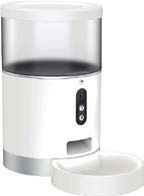
4L (4.2 qt / 135 oz) Smart Pet Feeder Camera Full HD 2MP Wi-Fi Tuya ALPHA-300
Brand: Generic / OEM
•
Audited BOM: 10 Components
🛠️ Troubleshooting Guide & Return Mitigation
Verified Self-Service BasePractical guide for your ALPHA-300 Smart Pet Feeder Camera: usage, troubleshooting, and defect prevention to ensure your pet's well-being and the device's longevity.
RMA Prevention Tags:
#clean_reservoir
#wifi_setup
#use_correct_adapter
#stable_power
🔍 Colloquial Consumer Search Queries:
“smart pet feeder not dispensing food”
“pet camera not connecting”
“Tuya app not working for pet feeder”
“4L pet feeder stuck”
“how to clean automatic pet feeder”
🚀 Quick Start & Safe Operation Guide
1
Connect the feeder to power using the original adapter. 2. Download and install the Tuya Smart or Smart Life app and create an account. 3. Follow the app's instructions to connect the feeder to your 2.4GHz Wi-Fi network. 4. Add food to the reservoir and set feeding schedules via the app.
🔒
+2 Detailed Operational Steps Locked in Torfus Pro
Unlock Steps
⚡ Easy DIY Troubleshooting & Common Fixes
🔧
prob_01
The feeder is not dispensing food.
Common root cause: Obstruction in the dispensing mechanism or empty reservoir.
Step-by-step solution: Check if there is food in the reservoir. If so, remove the food, clean the dispensing mechanism with a dry cloth, and reinsert the food. Ensure the kibble is not clumped or moist.
💡
Pro tip: Use dry, uniformly sized kibble to prevent clogs. Clean the reservoir and mechanism periodically.
📸
Evidence to provide support: Short video (5s) showing the dispensing mechanism when trying to dispense food.
🔒
+2 Exclusive Verified Technical Solutions Locked
Engineering diagnostics for mechanical jams, thermal overloads, and seal failures available in the Full Dossier.
Unlock Full Guide
🚫 What NEVER to Do (Common Misuse Warnings)
⚠️ Using a power adapter other than the original or a low-quality one.
err_01
Consequence: Damage to the electronic board, malfunction of the camera or dispensing mechanism, or the device may not power on.
✓ How to avoid: Always use the power adapter that came with the product or a replacement with the same voltage and amperage specifications.
🔒 +2 Critical Misuse Warnings Locked
Engineering alerts to prevent motor burnout, voided manufacturer warranty, and catastrophic component breakdown.
View All Warnings
⚙️ Hardware Setup, Adjustments & FAQs
🔒 +1 Hardware Setup & Calibration FAQs Locked in Torfus Pro
Unlock
⚖️
⚖️ Seller Warranty & Marketplace Dispute Conciliation
Contact support under the seller's warranty and marketplace return policy if, after following all usage and troubleshooting instructions, the feeder exhibits persistent issues such as not powering on, failing to connect to Wi-Fi (even with a strong signal), the camera not functioning, or the food dispensing mechanism failing without apparent obstruction. These may indicate manufacturing defects.