Smart Home > Smart Switches & Outlets > Smart Light Switches
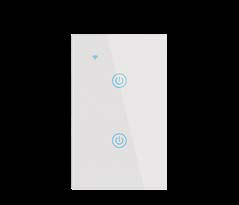
2-Gang Wi-Fi + Bluetooth Smart Switch Tuya ALPHA-100-2
Brand: Generic / OEM
•
Audited BOM: 12 Components
🛠️ Troubleshooting Guide & Return Mitigation
Verified Self-Service BaseQuick guide for your ALPHA-100-2 Smart Switch: installation, usage, and common troubleshooting to ensure proper function and prevent warranty claims.
RMA Prevention Tags:
#improper_electrical_installation
#power_overload
#incorrect_wifi_setup
#app_misuse
🔍 Colloquial Consumer Search Queries:
“smart switch not connecting”
“alpha-100-2 not turning on”
“how to set up tuya switch”
“smart switch unresponsive to app”
“alpha-100-2 wifi issue”
🚀 Quick Start & Safe Operation Guide
1
Ensure your 2.4GHz Wi-Fi network is stable and the password is correct. Turn off power to the circuit before starting installation.
🔒
+2 Detailed Operational Steps Locked in Torfus Pro
Unlock Steps
⚡ Easy DIY Troubleshooting & Common Fixes
🔧
prob_01
Switch does not turn on or respond to touch.
Common root cause: No power to the circuit or incorrect wiring.
Step-by-step solution: Check the circuit breaker. Confirm that the line and load wires are correctly connected according to the manual.
💡
Pro tip: Always turn off power before working with wiring. If unsure, hire a qualified electrician.
📸
Evidence to provide support: Short video showing line and load wire connections.
🔒
+2 Exclusive Verified Technical Solutions Locked
Engineering diagnostics for mechanical jams, thermal overloads, and seal failures available in the Full Dossier.
Unlock Full Guide
🚫 What NEVER to Do (Common Misuse Warnings)
⚠️ Connecting a total load exceeding 1200W across both switches.
err_01
Consequence: Overload of the switch's internal circuit, leading to burnout or malfunction.
✓ How to avoid: Check the total wattage of connected devices and ensure it does not exceed 1200W. Use the switch for appropriate loads (lights, fans, etc.).
🔒 +2 Critical Misuse Warnings Locked
Engineering alerts to prevent motor burnout, voided manufacturer warranty, and catastrophic component breakdown.
View All Warnings
⚙️ Hardware Setup, Adjustments & FAQs
🔒 +1 Hardware Setup & Calibration FAQs Locked in Torfus Pro
Unlock
⚖️
⚖️ Seller Warranty & Marketplace Dispute Conciliation
Contact support for warranty service if, after following all instructions in this guide and verifying the electrical installation, the switch exhibits failures that cannot be resolved (e.g., does not power on, does not connect to Wi-Fi despite a strong signal, buttons are unresponsive), indicating a potential manufacturing defect.